

Setup guide
About 15 minutes, start to finish. You need an OpenAI account; a Claude account is optional. Once you're set up, the User guide explains every part of the app.
1. Get an OpenAI key
- Sign in at platform.openai.com.
- Under Billing, add a card and a small amount of prepaid credit (for example $10). Turn auto-recharge off if you want a hard stop.
- Under Limits, set a monthly budget.
- Under API keys, choose Create new secret key and name it after yourself and this PC.
- Copy the key. It starts with
sk-and is shown only once.
API accounts are billed separately from a ChatGPT subscription. A ChatGPT or Claude.ai subscription on its own doesn't work here.
2. A Claude key (optional)
Only needed if you want Claude for tidy-up instead of OpenAI. Skip this if you're happy using OpenAI for everything. Jibber-Jabber works fully without it.
- Sign in to the Claude Console at console.anthropic.com.
- Under Billing, add credit and check your spending limit.
- Under API keys, choose Create key, named after yourself and this PC.
- Copy the key. It starts with
sk-ant-.
3. Put the keys into Jibber-Jabber
- Run Jibber-Jabber-Setup.exe from the Download page. It installs just for you, so you don't need administrator rights, and Jibber-Jabber opens with a welcome card.
Windows may say "Windows protected your PC", because Jibber-Jabber is new and not yet known to Microsoft. Choose More info, then Run anyway. Only do this for a file you downloaded from jibber-jabber.com.au.
- Choose Add key, or go to Settings → OpenAI connection. Paste the key into OpenAI API key, choose Save key, then Check connection. It should say Connected.
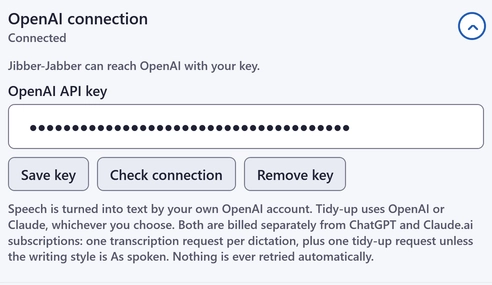
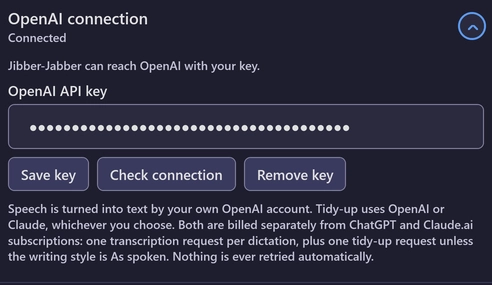
What you'll see after Check connection. Your key always shows as dots. - If you're using Claude: in Settings → Claude connection, paste into Claude API key, then Save key and Check connection.
- In Settings → Dictating, choose your microphone, a writing style (Light tidy-up is a good start) and who does the tidy-up. Run Check connection again. It also checks the chosen tidy-up model.
- Test it: open Notepad, hold Right Ctrl, say a sentence, and let go.
- Jibber-Jabber now starts each time you sign in to Windows. To change that, untick Start Jibber-Jabber when I sign in to Windows in Settings → App.
4. Your first dictation
Click
Click where you want the words: an email, a document, a chat or a Remote Desktop window.
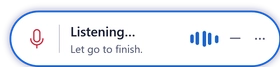
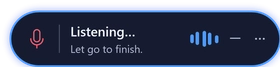
Hold Right Ctrl
Hold the key and talk normally, for up to 10 minutes.
Let go
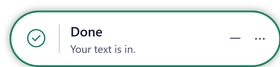
Your words appear where you clicked, tidied up.

Other ways to start
- Click the mic on the floating button. Click it again to finish. Your words still go where you clicked first.
- Press Ctrl+Alt+J to start, and again to finish.
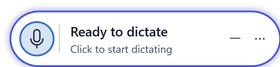
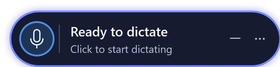
Press Esc while talking to cancel. Nothing is sent.
Can't see the floating button? Right-click the Jibber-Jabber icon in the system tray and choose Show floating button.
Say these to lay out your text
- "New paragraph" starts a new paragraph.
- "New line" starts a new line.
- "Dot point" starts a dot point.
Pause briefly before and after. Longer dictations get paragraphs automatically.
Keeping keys safe
- Keys are stored in Windows Credential Manager on your PC, never in a file.
- Never email, text or paste a key into a chat. Type or paste it straight into the app.
- Use one key per person and PC, so you can turn one off without affecting the others.
- If a key may have leaked, delete it in the provider's console and make a new one. Then use Remove key and Save key in the app.
Which tidy-up model?
Choose under Tidy-up by in Settings → Dictating.
- GPT-6 Luna or Claude Haiku 5.5: fastest. Good for Light tidy-up and quick messages.
- Claude Sonnet 5.5 or GPT-6 Sol: best writing. Good for Polished emails, but take a few seconds longer.
- GPT-6.1 Sol and Claude Opus 5.5 are there too. Opus is the slowest.
- Everyday dictation costs very little per message on any of them. Claude models need a Claude key.
When OpenAI or Anthropic retire a model, Jibber-Jabber says so: "Tidy-up model changed" means choose another under Tidy-up by, and "Update Jibber-Jabber" means use Check for updates in Settings → App. Providers usually announce retirements months ahead.
Remote Desktop tips
- Jibber-Jabber pastes into whichever Remote Desktop session was in the foreground when you started talking, never a different one.
- It needs clipboard redirection to be turned on for that session. If it's off, a plain-English pop-up tells you and keeps your text.
- It never types into a password box or a secure sign-in screen, local or remote.
- If something else gets pasted instead, press Ctrl+Z. Your original clipboard is normally restored a moment after your text goes in.
Updates
- Jibber-Jabber looks for a new version a minute after it starts, then once a day, and downloads it in the background. Every update is checked against Jibber-Jabber's own signature before it's installed.
- When one is ready, "Update ready, restart to finish" appears at the top of the main window. Choose Restart, or What's new to read about it first.
- Restart waits while you're dictating. If you don't restart, the update installs next time you quit Jibber-Jabber.
- To look straight away, use Check for updates in Settings → App. You can turn automatic checks off there too.
Removing Jibber-Jabber
Open Windows Settings → Apps → Installed apps, find Jibber-Jabber and choose Uninstall. Your settings and saved keys are kept, so they're still there if you install it again. To remove the keys too, choose Remove key in Jibber-Jabber's Settings for each one first.
If something goes wrong
- The floating button turns amber with a warning and says what happened. Your words are kept safe.
- A pop-up holds your text if it couldn't be pasted: click where you want it, then choose Insert here. Or choose Copy and paste it yourself.
- "Inserted without tidy-up" means your words went in exactly as said. Fix them up by hand, or dictate again. The message says why: usually the tidy-up service was slow or unavailable, or a tidy-up would have changed names, numbers, codes or your Words to keep exactly.
- Still stuck? Open the Help tab in the app, or email hello@jibber-jabber.com.au.
Printable sheets
The essentials as one-page PDFs to print or keep handy. The User guide covers everything else.
- Quick start (PDF), the three-step basics.
- Setup sheet (PDF), for whoever is installing it on a new PC.