User guide
How every part of Jibber-Jabber works. New to it? Start with the Setup guide to install it and add your key, then come back here.
The floating button
The floating button sits on top of your other windows so you can always see what Jibber-Jabber is doing. It never takes the keyboard away from the app you're typing in.
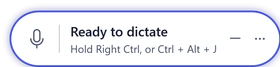
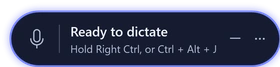


- The mic starts a dictation. Click it again to finish.
- Make small (the dash) shrinks it to a round mic between dictations. It opens to the full bar while you talk.
- More options (the three dots), or right-click anywhere on it, opens its menu.
- Drag it anywhere on screen. It remembers where you put it. If it ever ends up out of sight, use Reset its position in Settings, Floating button.
The floating button's menu
Right-click the floating button, or click its three dots, for quick access to the things you change most, without opening the main window. Greyed-out items aren't available just then: Cancel only works while you're dictating, and the last-text items need a dictation first.
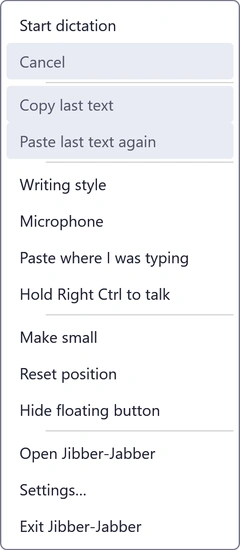
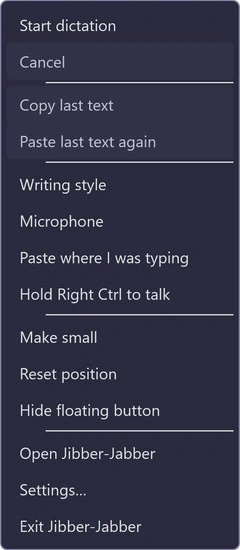
Settings items on the menu wait while you're dictating, just like the Settings tab.
What the colours mean
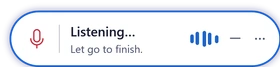
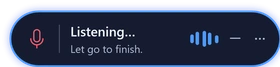
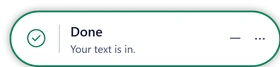
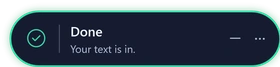
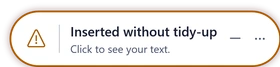
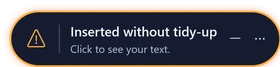
Amber never means your words are lost. The bar says what happened, and the main window explains more. See Messages and what to do.
Dictating
First click where you want the words: an email, a document, a chat, a form or a Remote Desktop window. Then use whichever way suits you:
- Hold Right Ctrl and talk. Let go to finish. This is the quickest way.
- Press Ctrl+Alt+J once to start and again to finish. You can choose a different shortcut in Settings, Dictating.
- Click the mic on the floating button, or Start dictation in the main window.
Your words go into the window you were in when you started, even if you click somewhere else while they're being written up. Whatever you had copied is put back afterwards.
- Cancel: press Esc while recording. Nothing is sent and nothing is pasted.
- Length: up to 10 minutes per dictation. A countdown appears near the end, and anything you said is kept.
- Command windows (Command Prompt, PowerShell, Windows Terminal, SSH): your text goes in as one line, so it can't run anything. Nothing runs until you press Enter.
- Safety: Jibber-Jabber never pastes into password boxes, windows running as administrator, or the Windows sign-in screen. The pop-up holds your text instead.
Laying out your text by voice
Say these on their own, with a short pause before and after, in any writing style:
- "New paragraph" starts a new paragraph.
- "New line" starts a new line.
- "Dot point" starts a new dot point.
The same words inside a sentence, such as "a new line of credit", are left alone.
Your text (the Home tab)
The main window keeps your latest dictation, so you can copy it again or fix a word. Open it from the tray icon or the floating button's menu.
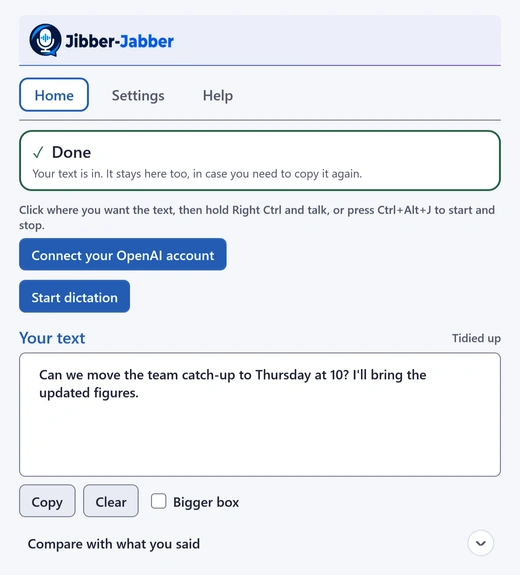
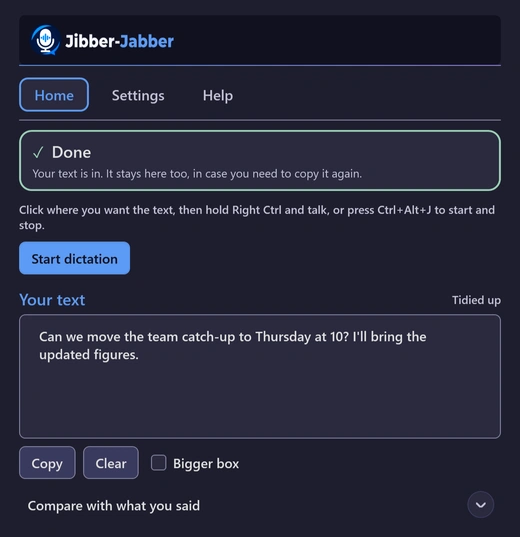
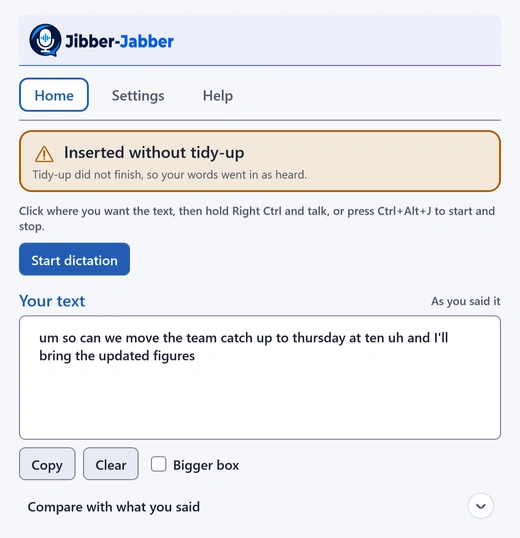
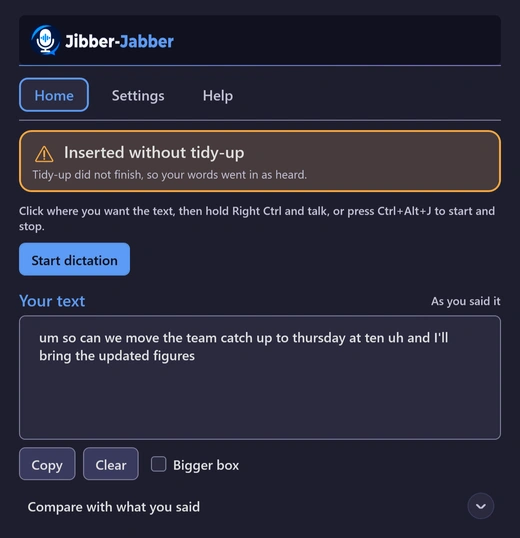
- The status box at the top says what happened, in plain English.
- Your text can be edited. The label on the right says whether it's Tidied up or As you said it, and adds "edited" once you change it.
- Copy puts it on your clipboard. Clear empties the box. Bigger box gives you more room to read or edit.
- When your text is waiting to go in, an Insert button appears: click where you want it first, then choose Insert.
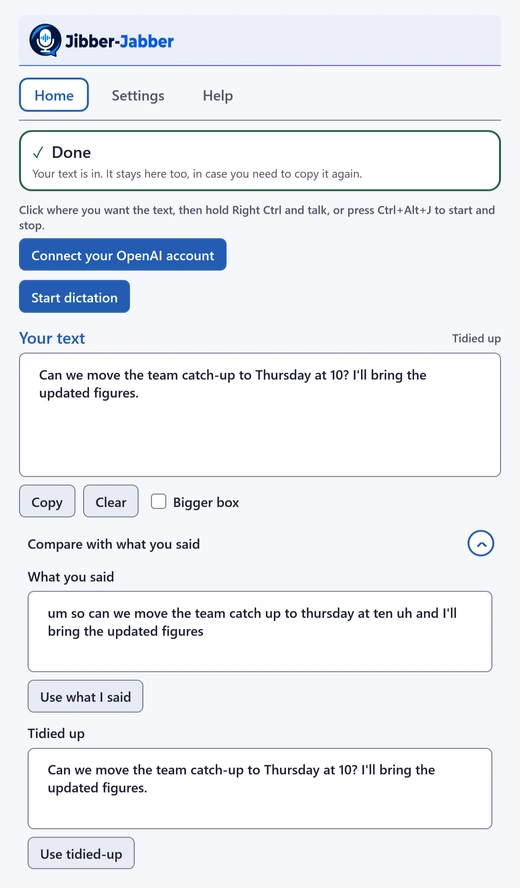
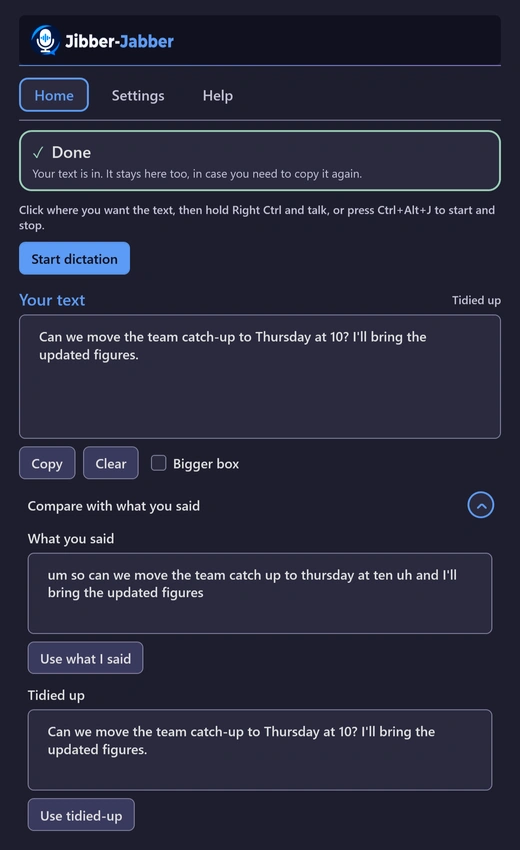
Compare with what you said
Open Compare with what you said to see your exact words next to the tidied-up version. Choose Use what I said to switch back to your words, or Use tidied-up to switch again. Switching doesn't send anything or cost anything.
The pop-up holding your text
If your text couldn't be pasted safely (you switched windows, the box was a password field, or the window runs as administrator), a small pop-up appears near the pointer with the reason and your text.
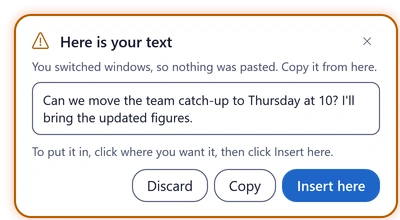
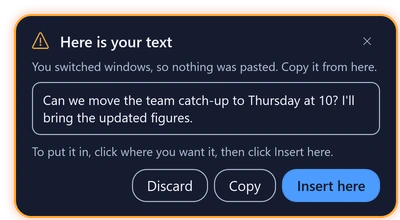
- Insert here: click into the place you want the text first, then choose Insert here.
- Copy: puts the text on your clipboard so you can paste it yourself.
- Discard: throws the text away.
Closing the pop-up keeps your text in the main window. Starting a new dictation hides it.
Writing styles compared
Choose a style in Settings, Dictating. Here's the same short dictation in each one:
As spoken
Exactly what you said. No tidy-up, so it's the fastest and costs least.
um hi Sam just following up on the quote for the bathroom uh can you let me know if Tuesday still works and um whether the tiles have arrived thanks
Light tidy-up
Fixes punctuation, capitals and slips, and removes ums and ahs. Your wording stays.
Hi Sam, just following up on the quote for the bathroom. Can you let me know if Tuesday still works and whether the tiles have arrived? Thanks.
Polished
Rewrites like an editor, clear and professional, without adding anything you didn't say.
Hi Sam,
I'm following up on the quote for the bathroom. Could you let me know whether Tuesday still works, and whether the tiles have arrived?
Thanks
These are examples. Real results vary a little each time.
- With Light tidy-up or Polished, longer dictations are split into paragraphs, and emails get the greeting and sign-off on their own lines. Polished also turns spoken lists of three or more things into dot points.
- Names, numbers, times, codes and your Words to keep exactly are never changed. If a tidy-up would change them, your words go in as you said them instead, with an amber note saying so.
Settings, section by section
Settings opens with every section closed and a one-line summary of each. Open one to change it; opening another closes the last. Changes apply from your next dictation, and Settings waits while you're dictating.
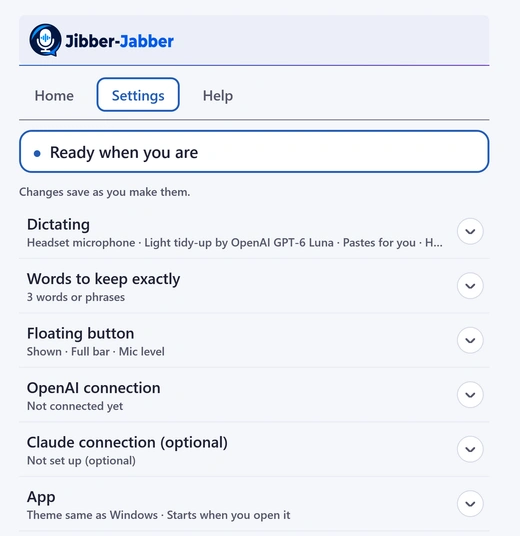
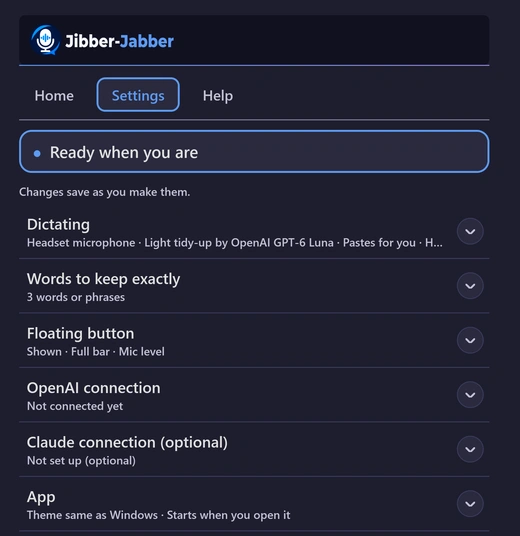
Dictating
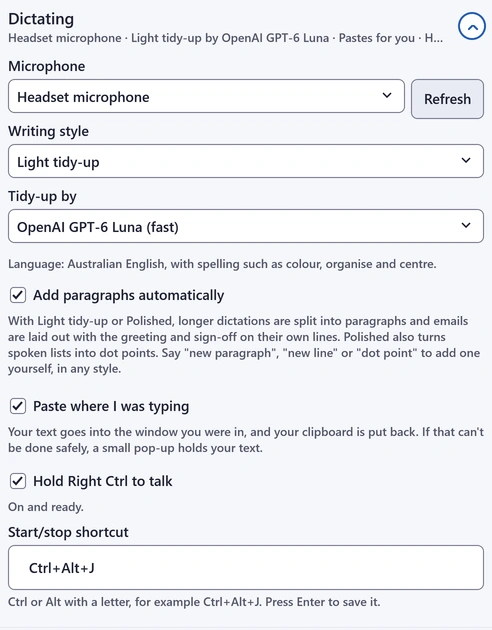
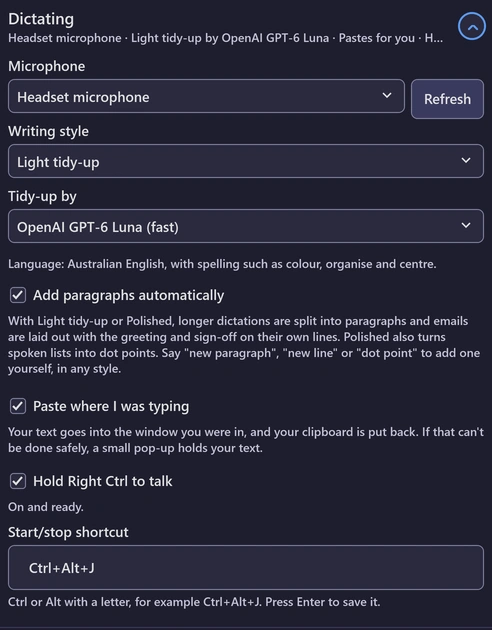
- Microphone: the one you talk into. Plugged in a headset? Choose Refresh to see it.
- Writing style: As spoken, Light tidy-up or Polished (see Writing styles compared).
- Tidy-up by: which model does the tidy-up. The fast ones are quickest; Claude Sonnet 5.5 and GPT-6 Sol write best but take a few seconds longer. Claude models need a Claude key.
- Language: Australian English, with spelling such as colour, organise and centre.
- Add paragraphs automatically: untick it to keep quick chat messages as one block.
- Paste where I was typing: untick it if you'd rather your text waited in the main window for you to copy.
- Hold Right Ctrl to talk: untick it if Right Ctrl gets in the way. The status line underneath says whether it's working.
- Start/stop shortcut: Ctrl or Alt with a letter, for example Ctrl+Alt+J. Press Enter to save it. If another app already uses it, you'll be asked to choose another.
Words to keep exactly
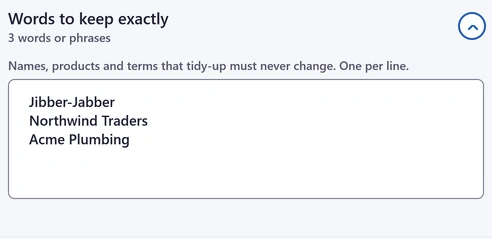
Add names, products and terms you use often, one per line (up to 128). The tidy-up never changes them and uses your spelling as a guide. They're only a guide for tidy-up: if a name is often heard wrongly, saying it clearly helps most.
Floating button
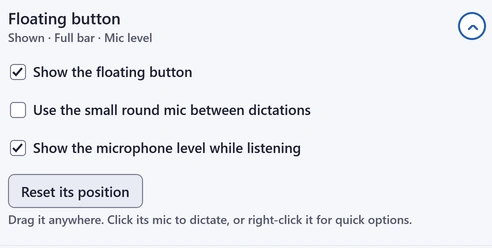
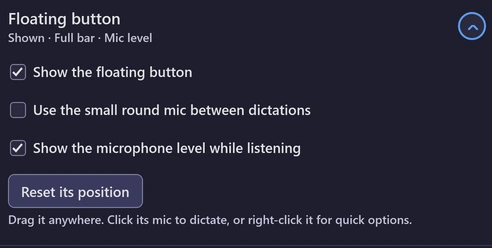
- Show the floating button: turn it off if you only use the shortcut. You can bring it back from the tray icon.
- Use the small round mic between dictations: the compact look.
- Show the microphone level while listening: the moving sound wave.
- Reset its position: puts it back in the corner if it's out of sight.
OpenAI connection
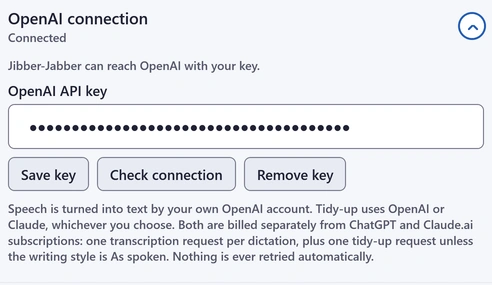
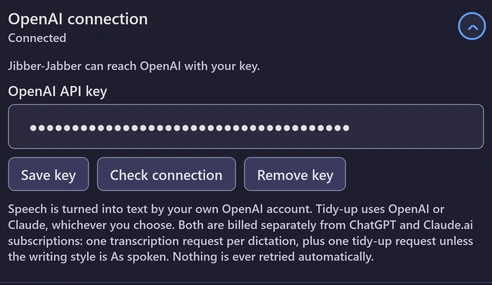
- Save key stores your key in Windows Credential Manager on this PC. It's shown only as dots.
- Check connection tests the key and the chosen tidy-up model. It should say Connected.
- Remove key deletes it from this PC. It still works at OpenAI until you delete it there too.
Claude connection (optional)
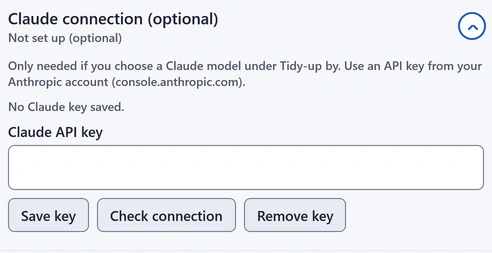
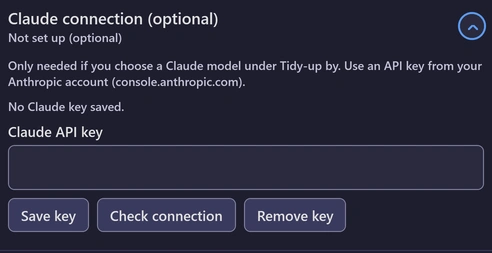
Only needed if you choose a Claude model under Tidy-up by. It works the same way as the OpenAI connection, with a key from console.anthropic.com.
App
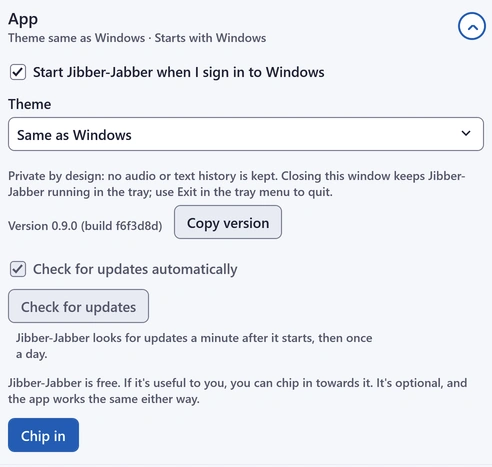
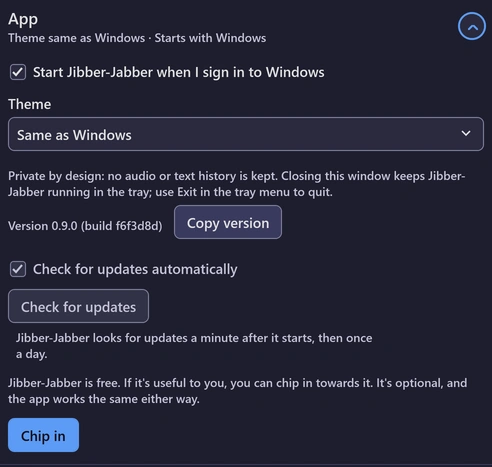
- Start Jibber-Jabber when I sign in to Windows: on after installing.
- Theme: Same as Windows, Light or Dark.
- Version and Copy version: handy if you contact us.
- Check for updates automatically and Check for updates: see Updates in the Setup guide.
- Chip in: opens our Chip in page. It's entirely optional.
Closing the main window keeps Jibber-Jabber running in the tray. To quit, use Exit in the tray menu.
The tray icon
Jibber-Jabber lives in the system tray, near the clock (you may need the small arrow to see it). Its icon changes while you're recording and when something needs a look. Double-click it to open the main window, or right-click for:
- Update ready, restart to finish (only when an update is waiting)
- Open Jibber-Jabber
- Help and Settings
- Show floating button, if you've hidden it
- Chip in…
- Exit
Messages and what to do
When something needs your attention, the floating button and the top of the main window turn amber and say what happened.
The Help tab
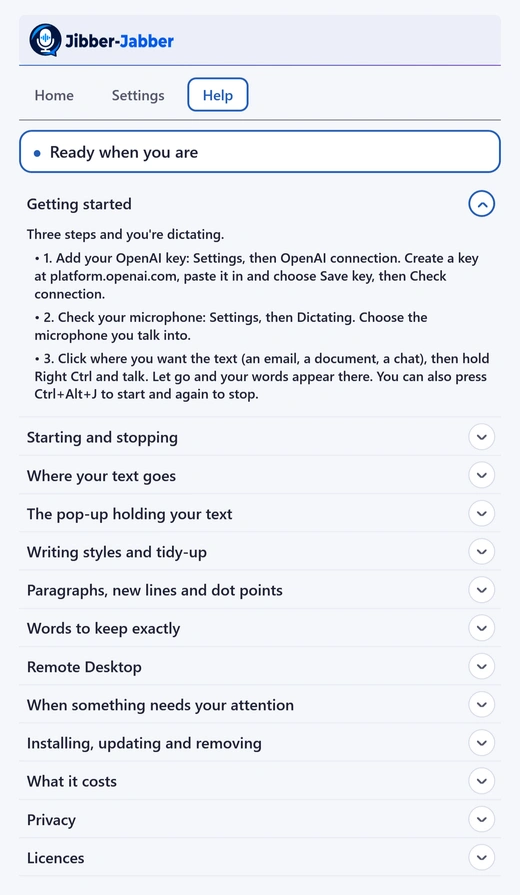
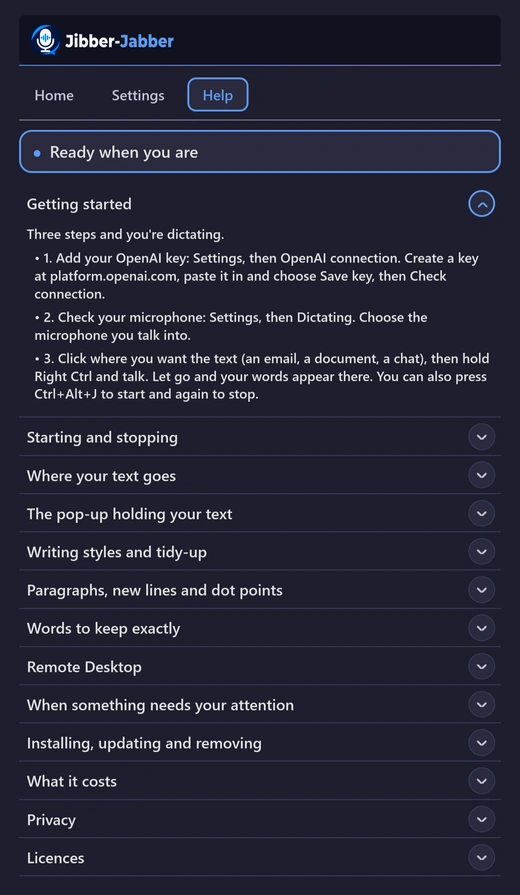
The same guidance, in short, is built into the app and works offline: open the Help tab, or choose Help from the tray icon. It shows your own shortcut. For a printable one-page summary, see the Quick start (PDF).
Remote Desktop, privacy and costs
- Remote Desktop: click into the session, hold Right Ctrl and talk. The session needs clipboard sharing turned on. Be careful dictating into a remote command window; see the Remote Desktop tips.
- Privacy: your recording goes to OpenAI to become text, and your text goes to the tidy-up service you chose. Nothing is saved to disk. Keys stay in Windows Credential Manager. Details are on the Privacy page.
- Costs: you pay OpenAI (and Anthropic, if you use Claude) directly, usually a few cents at most per dictation. Nothing is ever retried automatically, so you're never charged twice. Set a monthly limit in your account.
Still stuck? Email hello@jibber-jabber.com.au.